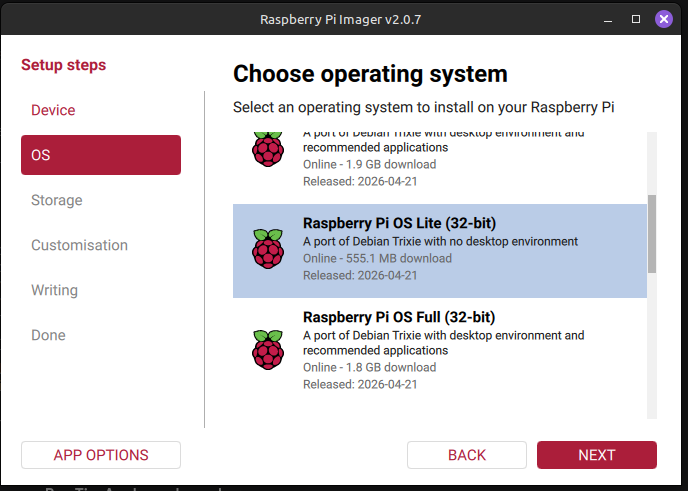
1. Flashing the OS & Network Setup
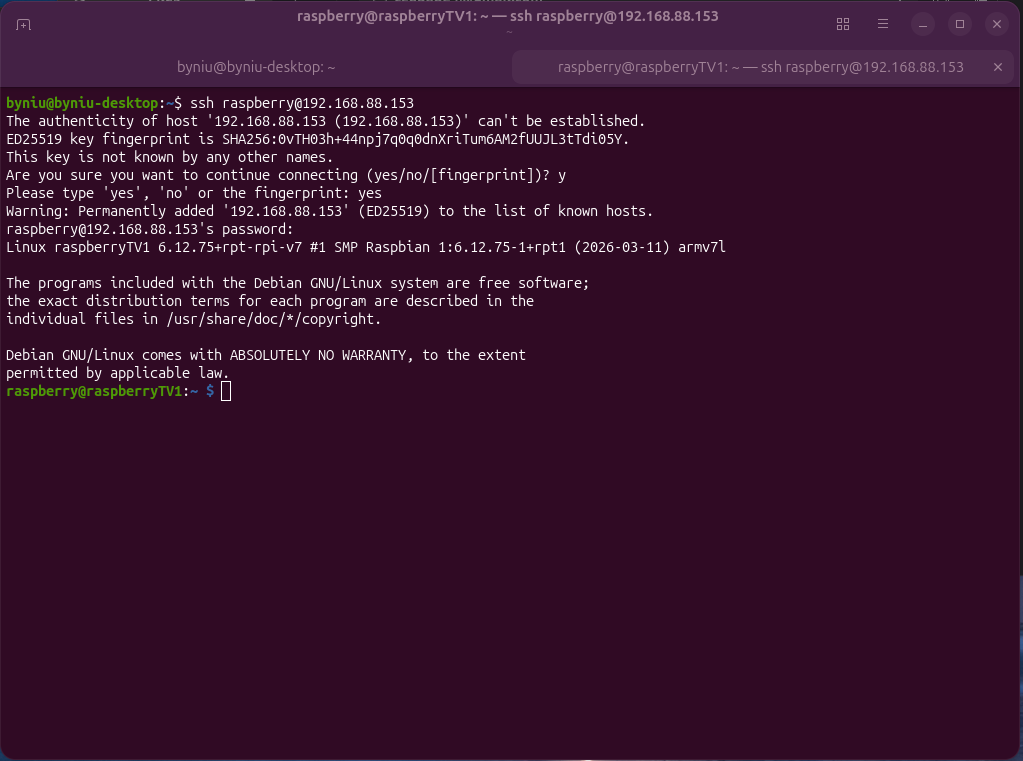
2. SSH tunnel Screen Blanking & Resolution
sudo nano /boot/firmware/cmdline.txt

	consoleblank=0
(Optional; to lock the device to specific resolution)
video=HDMI-A-1:1366x768@60D
3. Media player & Core Dependencies
sudo apt update && sudo apt upgrade -y
sudo apt install mpv -y
Pivot
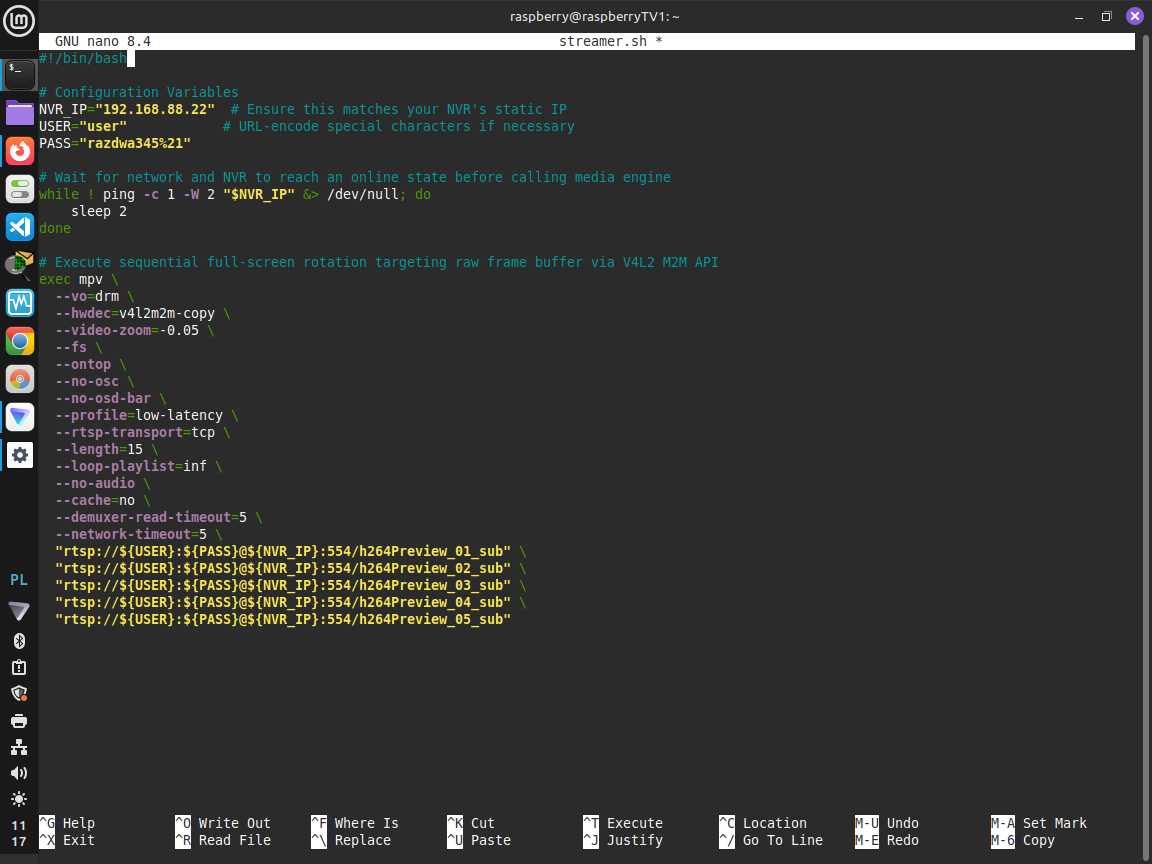
Reolink doesn’t support Zero-channels, Raspberry is too weak to handle zero channel encoding via software. I’m pivoting idea to sequential full-screen rotations.
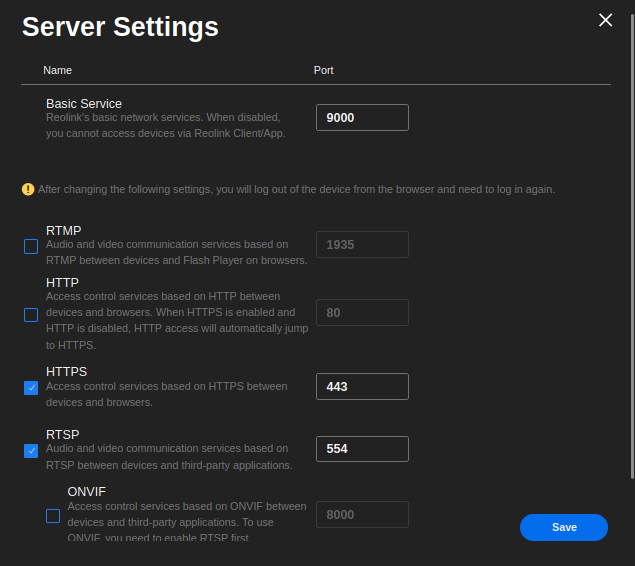
4. Execution Script
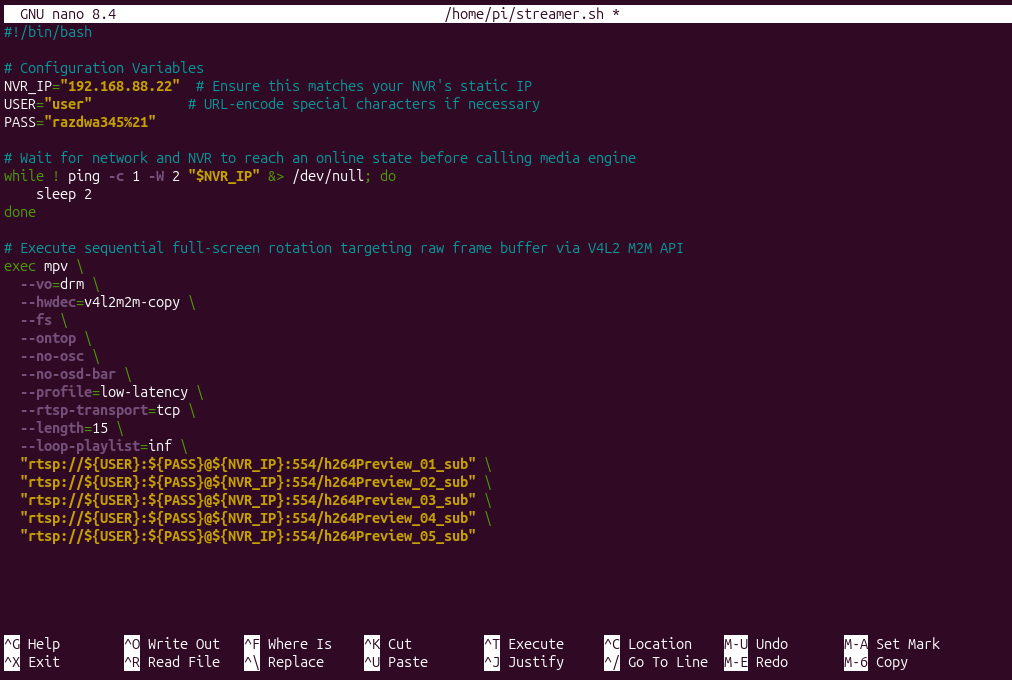
File permissions:
chmod +x /home/raspberry/streamer.sh
sudo chown -R raspberry:raspberry /home/raspberry/streamer.sh
5. Systemd - Service for 24/7 Autostart
To make the system completely hands-free, we wrap the script in a background service that launches on boot and restarts automatically if anything fails.
sudo nano /etc/systemd/system/cctv-stream.service
GNU nano 8.4 /etc/systemd/system/cctv-stream.service
[Unit]
Description=CCTV RTSP Dedicated Streamer
After=network-online.target multi-user.target
Wants=network-online.target

[Service]
Type=simple
User=raspberry
ExecStart=/usr/bin/bash /home/raspberry/streamer.sh
Restart=always
RestartSec=5
StartLimitIntervalSec=600
StartLimitBurst=100
PAMName=login
StandardOutput=journal
StandardError=journal

[Install]
WantedBy=multi-user.target
sudo systemctl daemon-reload
sudo systemctl enable cctv-stream.service
sudo systemctl start cctv-stream.service
Bugs
1.
Problem: Video crashes after some time of streaming, like after few hours.
Cause: Video packet loose in TCP transportation while keeping sending the audio packets.
Solution: Drop entirely audio packets then if video loose will take place the mpv app distinct the complete connection drop and will signalize error. Then systemd will restart mpv.
2.
Error: The Under voltage detected!
Older LCD screens frequently leak stray 5V current backward through the HDMI cable directly into the display source. When you boot the Raspberry Pi 3 Model A+ with the HDMI connected, this unmanaged stray voltage creates a ground loop or confuses the board’s power-on reset circuitry, silently locking up the onboard Wi-Fi chip during initialization.
Cause: The HDMI cable from TV conduct +5V on Pin 18 for Hot Plug feature.
Solution: Tape the Pin 18 on HDMI cable or remove it completely. Use the cheap HDMI cable that has high resistance on wires or doesn’t provide the wire on pin 18.
3.
Problem: Systemd only restart the script few times then it just give up. Leaving the system in dead state.
Cause: The Start limit burst protection is protecting from infinite launching and crashing the script under the systemd.
Solution: The 10-Minute Compromise by setting the maximum allowed time window and attempts amount for restarting process.
StartLimitIntervalSec=600
StartLimitBurst=100
4.
Problem: Raspberry doesn’t connect to the network. It doesn’t even try, there is log on Raspberry showing wpa_supplicant in idle state.
Cause: A conflict in the Linux networking stack between legacy and modern connection managers. When first installed the OS, it likely relied on wpa_supplicant. However, modern Raspberry Pi OS versions have migrated to NetworkManager as the primary controller.
Solution: sudo nmcli device wifi connect "SSID" password "PASSWORD"
5.
Problem: Very high resource consumption, almost 100% on every core! After about one hour of work the Raspberry crashed.
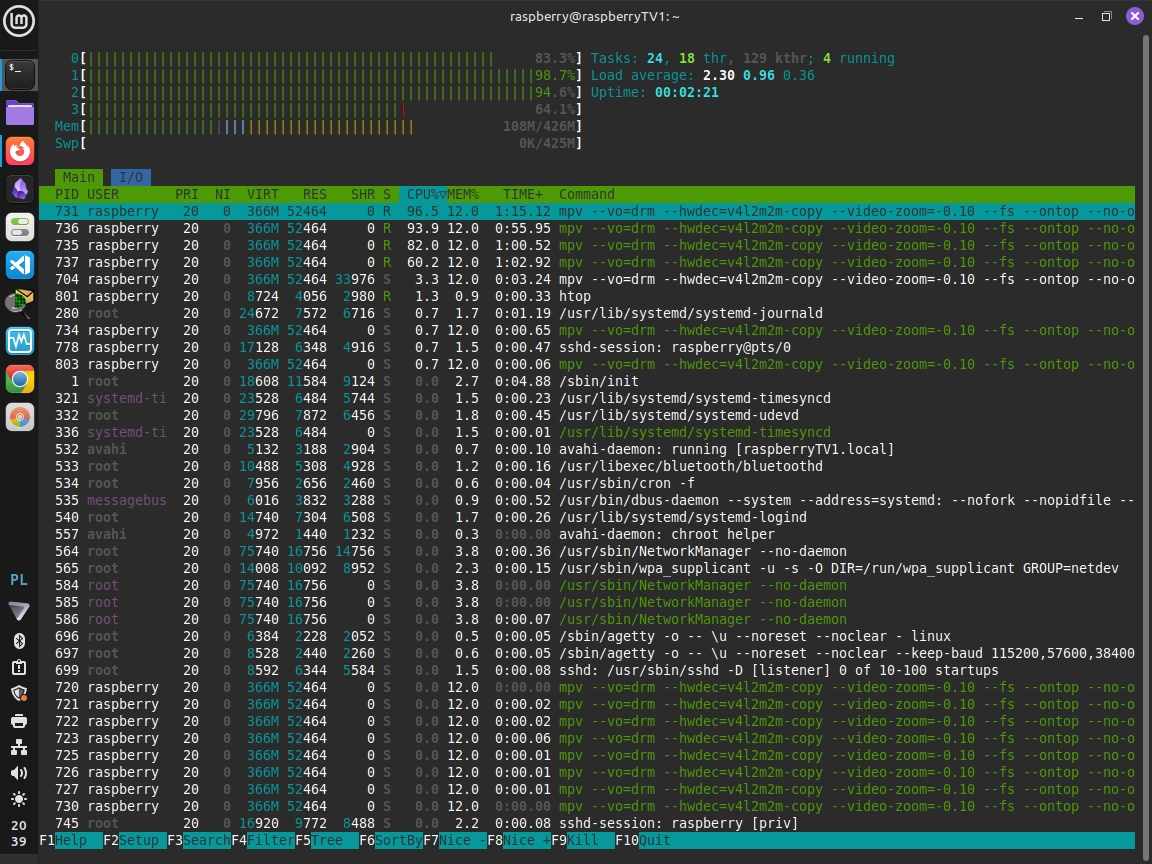
Cause: When hardware decoding works, the CPU sits near 5-10% while the GPU does the heavy lifting. When it fails, mpv hands the video to the CPU, spins up a thread for every core.
*Because sub-stream is a low-resolution feed (896x512) and your TV is a much larger resolution (likely 1920x1080), the video has to be stretched to fit the screen because of the --fs (fullscreen) flag.
By using --vo=drm, you told mpv to draw directly to the raw frame buffer. The problem is that the raw DRM frame buffer doesn’t have a built-in “stretcher.” So, mpv panics, grabs all four of CPU cores, and forces them to mathematically calculate the resized pixels for 25 frames every single second.*
Useful commands:
htop
vcgencmd measure_temp
vcgencmd get_throttled
killall mpv
Solution: Moving the workload from CPU to GPU by setting different flags in mpv configuration script.
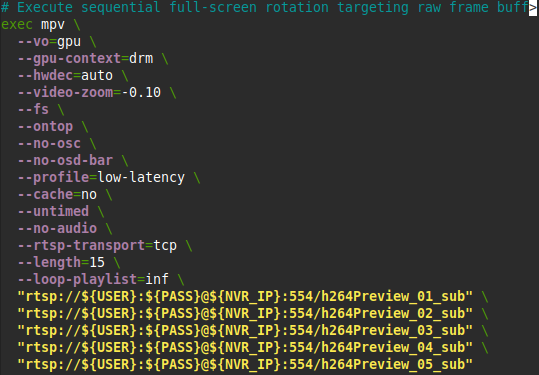
Success!
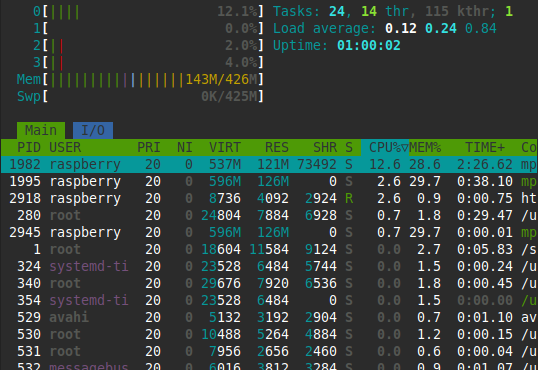

GPU HUD:
# Enable the Mesa GPU HUD
export GALLIUM_HUD=".x950.y40fps,GPU-load"
6.
Problem: Battery powered camera high energy drain with current setup.
Cause: The camera is supposed to provide about 10 minutes stream each day while I was connecting to it for 288 minutes (1/5 of whole day).
Solution: I changed the script to open the stream from Battery powered camera only one time for 25 minutes.
#!/usr/bin/bash

# Configuration Variables
NVR_IP="192.168.88.22"  # Ensure this matches your NVR's static IP
USER="xxx"              # URL-encode special characters if necessary
PASS="xxxxxx"

# Solar Camera Power Management
# Set how often to wake the battery camera (in seconds).
# 1800 seconds = 30 minutes.
SOLAR_WAKE_INTERVAL=1800
LAST_WAKE_TIME=0

# Enable the Mesa GPU HUD globally for all mpv instances
export GALLIUM_HUD=".x950.y40fps,GPU-load"

# Clean array containing your specific GPU setup + the freeze watchdogs
MPV_FLAGS=(
  --vo=gpu
  --gpu-context=drm
  --hwdec=auto
  --video-zoom=-0.07
  --fs
  --ontop
  --no-osc
  --no-osd-bar
  --profile=low-latency
  --cache=no
  --untimed
  --no-audio
  --rtsp-transport=tcp
  --length=15
  --stream-lavf-o=stimeout=5000000
)

# The Master Time Loop
while true; do
    # 1. Network Pre-Flight (Wait until NVR is reachable)
    while ! ping -c 1 -W 2 "$NVR_IP" &> /dev/null; do
        sleep 2
    done

    # 2. Check if the Solar Camera has rested long enough
    CURRENT_TIME=$(date +%s)
    if (( CURRENT_TIME - LAST_WAKE_TIME >= SOLAR_WAKE_INTERVAL )); then
        # Stream the battery camera for a single 15-second block
        mpv "${MPV_FLAGS[@]}" "rtsp://${USER}:${PASS}@${NVR_IP}:554/h264Preview_05_sub"

        # Log the exact time it went back to sleep
        LAST_WAKE_TIME=$(date +%s)
    fi

    # 3. Stream the hardwired cameras (Cams 1-4)
    # --loop-playlist=20 loops the 4 wired cameras 20 times.
    # 4 cameras * 15 seconds = 1 minute per loop. 20 loops = ~20 minutes of continuous rotation.
    mpv "${MPV_FLAGS[@]}" --loop-playlist=20 \
      "rtsp://${USER}:${PASS}@${NVR_IP}:554/h264Preview_01_sub" \
      "rtsp://${USER}:${PASS}@${NVR_IP}:554/h264Preview_02_sub" \
      "rtsp://${USER}:${PASS}@${NVR_IP}:554/h264Preview_03_sub" \
      "rtsp://${USER}:${PASS}@${NVR_IP}:554/h264Preview_04_sub"

done
7.
Problem: After some hours of stream the screen gets black I can still see the GPU fps HUD showing 0 fps. I can connect to the raspberry by SSH so there is network connection. If I use the killmpv command everything returns and it’s fine.
Cause: Over a multi-hour period, shifting network streams every 15 seconds forces the Pi’s underlying hardware video decoder driver to continuously tear down and re-allocate its memory planes inside a single continuous process. Eventually, the driver encounters a race condition, runs out of file descriptors, or chokes on a stream transition. The hardware decoder drops dead.
Solution: Remove --untimed, add --reset-on-next-file=all It instructs mpv to completely wipe, uninitialize, and re-allocate the hardware decoder, video filters, and GPU rendering parameters every single time it advances to the next camera in the playlist.